
What it does
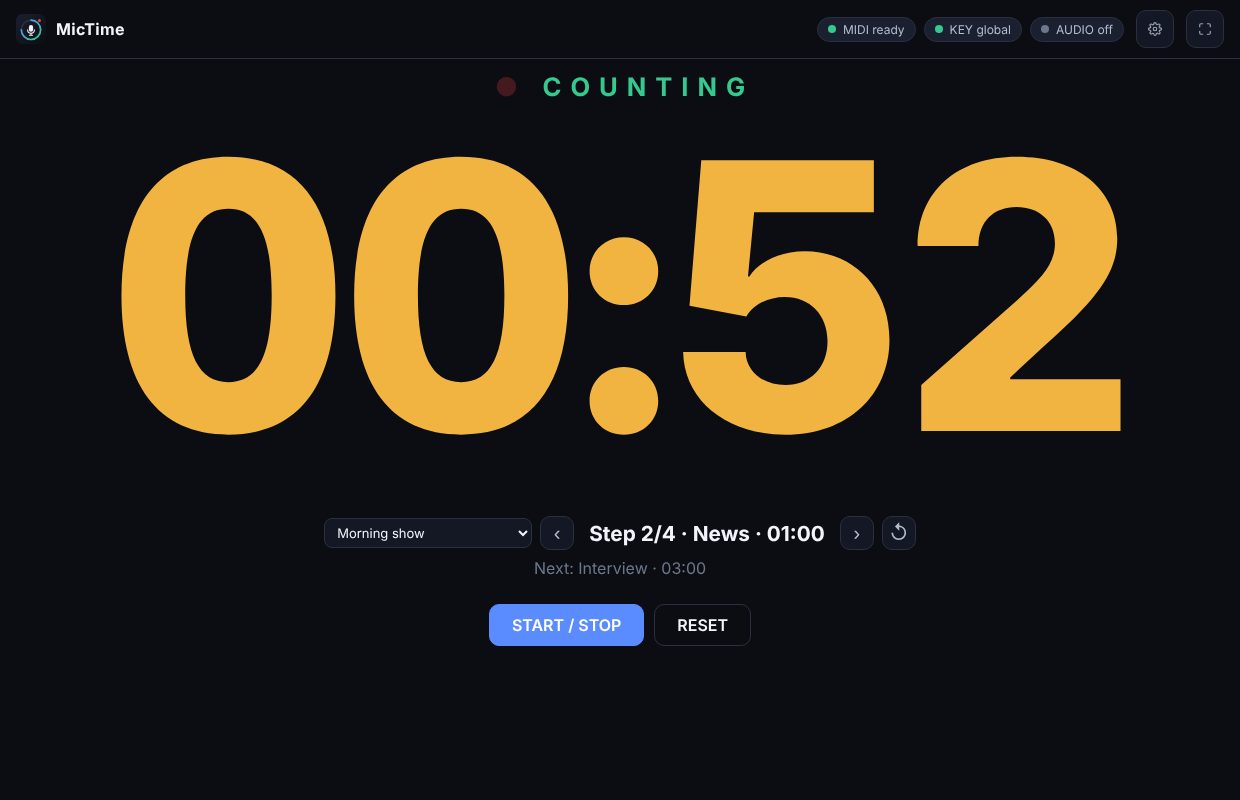
Choose how to start it (a MIDI message learned from your console or software, a key, or an audio input), set a time limit if you need one, and put the window where the presenter can see it: very large figures, readable across a studio.
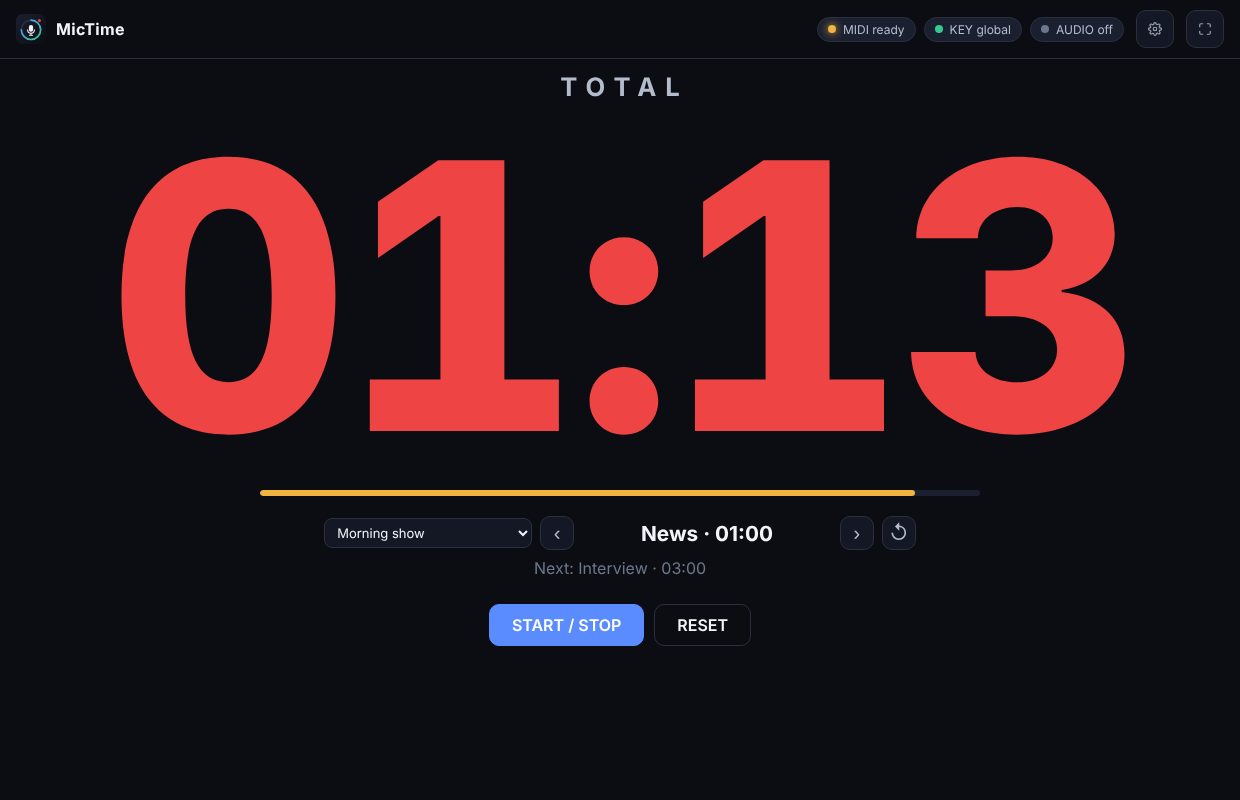
- Start, stop, total, zero. The first signal starts the count and the next one stops it. The total stays on screen for the time you choose (or until the next start) and the timer goes back to zero. A new start during the total begins a new count at once.
- MIDI with learn. Choose the input, press Learn and send the message from your console or software: a note, a controller or a program change. A monitor shows what arrives. A value above 0 is on, 0 is off. Two modes: one message that starts and stops, or separate start and stop (or the same message, on to start and off to stop).
- A key, even with another program in front. Assign a key or a combination as a global shortcut where the system allows it, or as a key that works with the window in front. The app says if the system refuses a shortcut.
- Audio level. Optional and off by default: the count starts when the level of an input reaches a threshold and stops after it stays below it for a hold time. Only the level is measured: nothing is recorded, saved or sent.
- Time limits and colours. With a limit, the figures are grey at zero, change colour a few seconds before the limit, turn red when it is passed and blink slowly when it is passed by a lot. The total keeps the colour it had at the stop. The colours and the times are yours to set, and with reduce motion on in the system a steady red frame replaces the blinking.
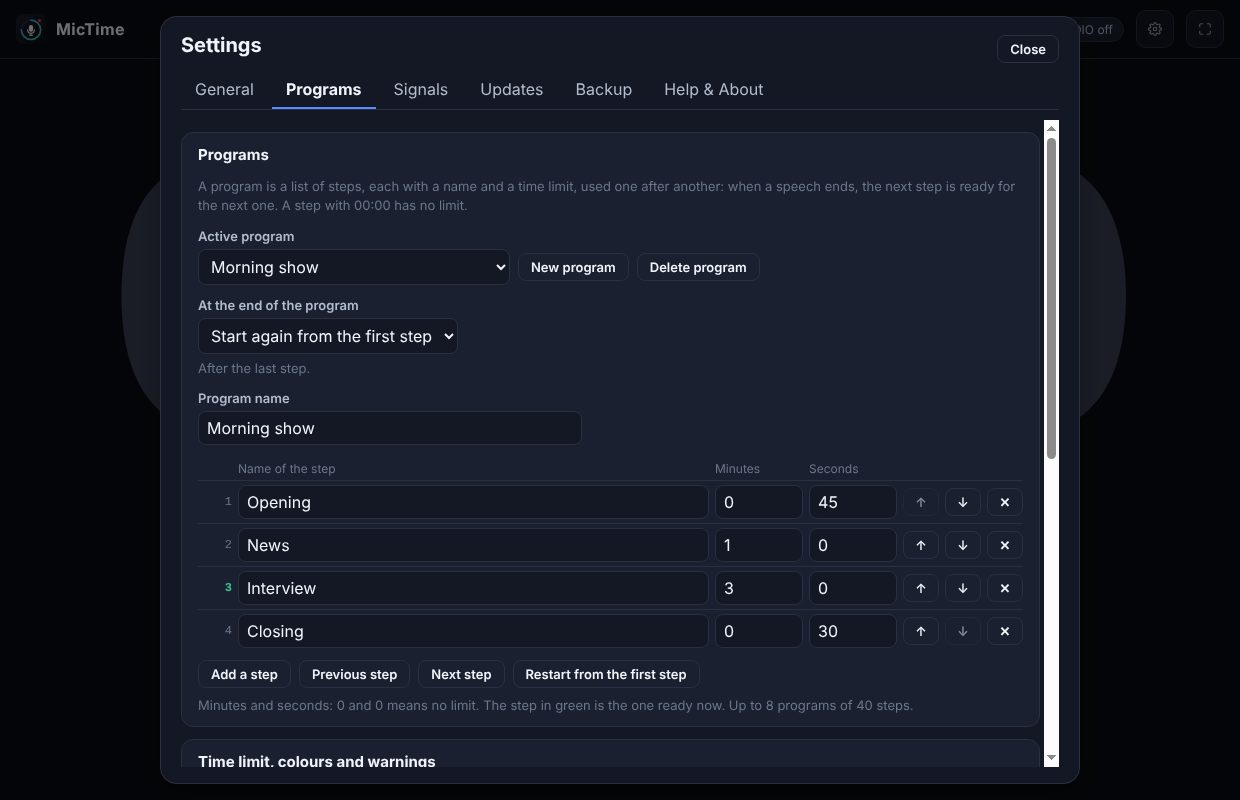
- Programs. A program is a list of steps, each with a name and a limit, for example Opening 00:45, News 01:00, Interview 03:00. After every speech the next step is ready by itself. Next, previous and restart are signals too, for when the running order changes.
- Made for the family of tools. English, Italiano and Español, dark, light or follow the system, backup of the configuration, a guided update that is checked and never installs by itself, and a Help and About page with the support info.
Where it helps
For a presenter or a director who has to keep speeches to a set time: live radio, panels, talks, a control room. The signal usually comes from a console or a playout program that can send MIDI, or from a key pressed by the director. The MIDI specification in the repository describes the messages and gives connection examples to check against your own manuals. MicTime measures the time between two signals on the computer: it is not a certified instrument and does not compensate for delays in a driver or a network. The app starts with no signal assigned and no limit.
Screenshots
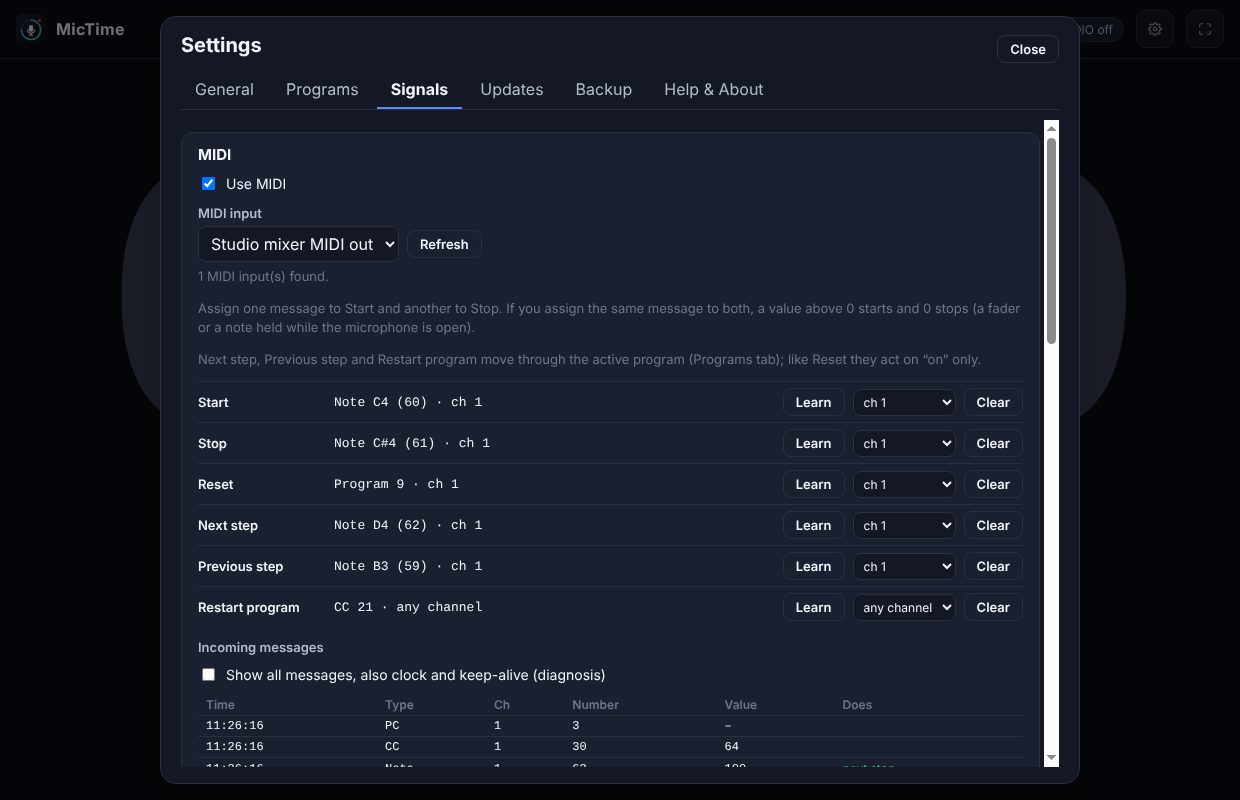
Quick start
- Open Settings, Signals, and press Learn next to Start / stop, then send the message from your console or software (or Set key to choose a key).
- Press the signal: the count starts. Press it again: it stops, the total stays on screen and the timer returns to zero.
- If you need a limit, set it in Settings, Programs: a single limit, or a program of steps.
First launch
The apps are free and not code-signed, so your system shows a warning the first time.
- Windows
- SmartScreen may say “Windows protected your PC”: click More info, then Run anyway.
- macOS
- Drag the app to Applications. If macOS blocks it, open System Settings → Privacy & Security and press Open Anyway.
- Linux
- Make the AppImage executable (chmod +x) and run it. Some distributions also need libfuse2.
- Check the file
- Compare the SHA-256 of what you downloaded with the one in the specs.
shasum -a 256 <file>·Get-FileHash <file> -Algorithm SHA256
Changelog
- 26.10.2 · 2026-10-17 · Maintenance release. Help & About has a small card at the bottom with the OnAir Garage tip jar: one line and one button that opens the tip page in your browser, in the language of the app. No pop-ups, nothing in the main window. Dependencies: electron-store 12 (your settings file is read as it was, nothing is lost) and Electron 44.9.0.
- 26.10.1 · 2026-10-16 · First public release: a talk timer for live radio and events. A signal (a MIDI message, a key or the level of an audio input) starts the count, the next one stops it, the total stays on screen and the timer returns to zero. Time limits with warning and over-limit colours, programs of steps with a time limit each, backup of the configuration and a guided update. The app starts with no signal assigned and no limit. Thanks to Emanuele, who suggested the idea that became this software.