
What it does
Add your streams and the sound card, give each input a name and a logo, set how long a silence may last, and leave the app running. When an input goes quiet you get an email and a Telegram message, and the wall display turns red.
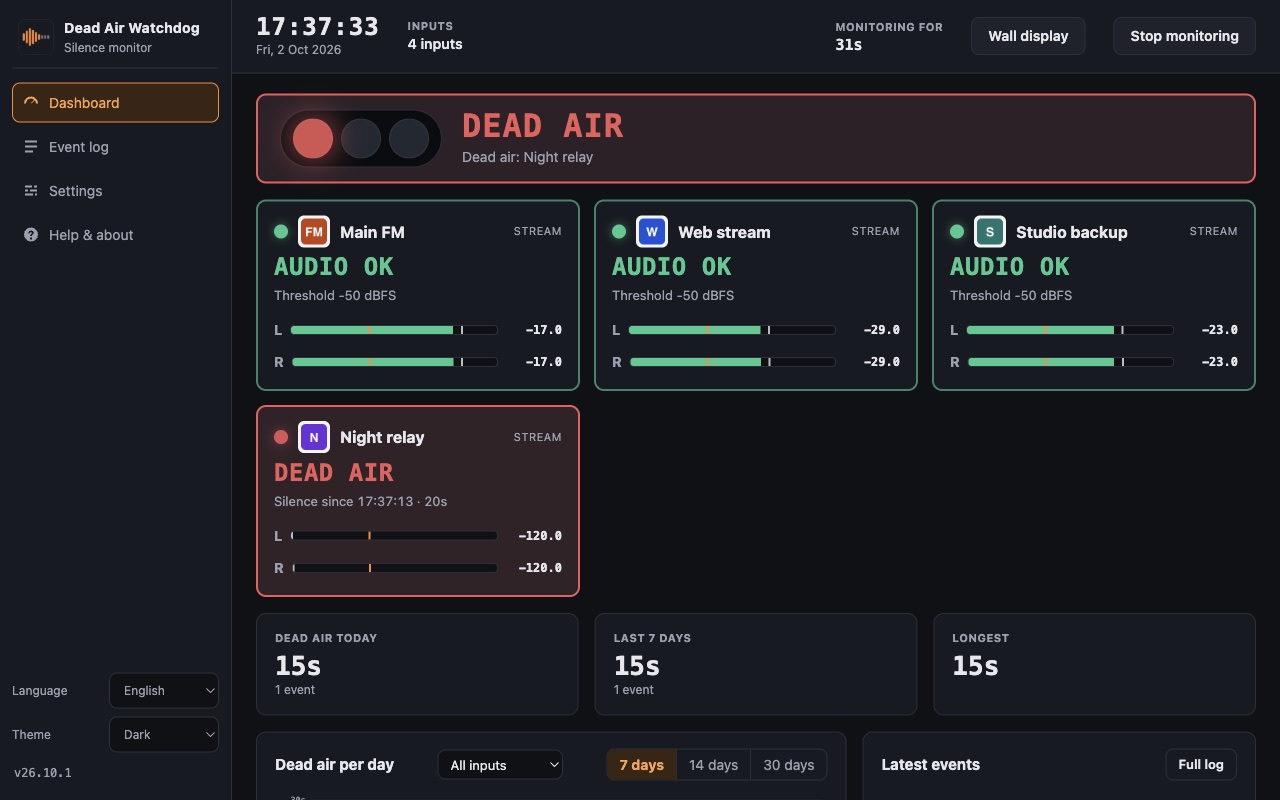
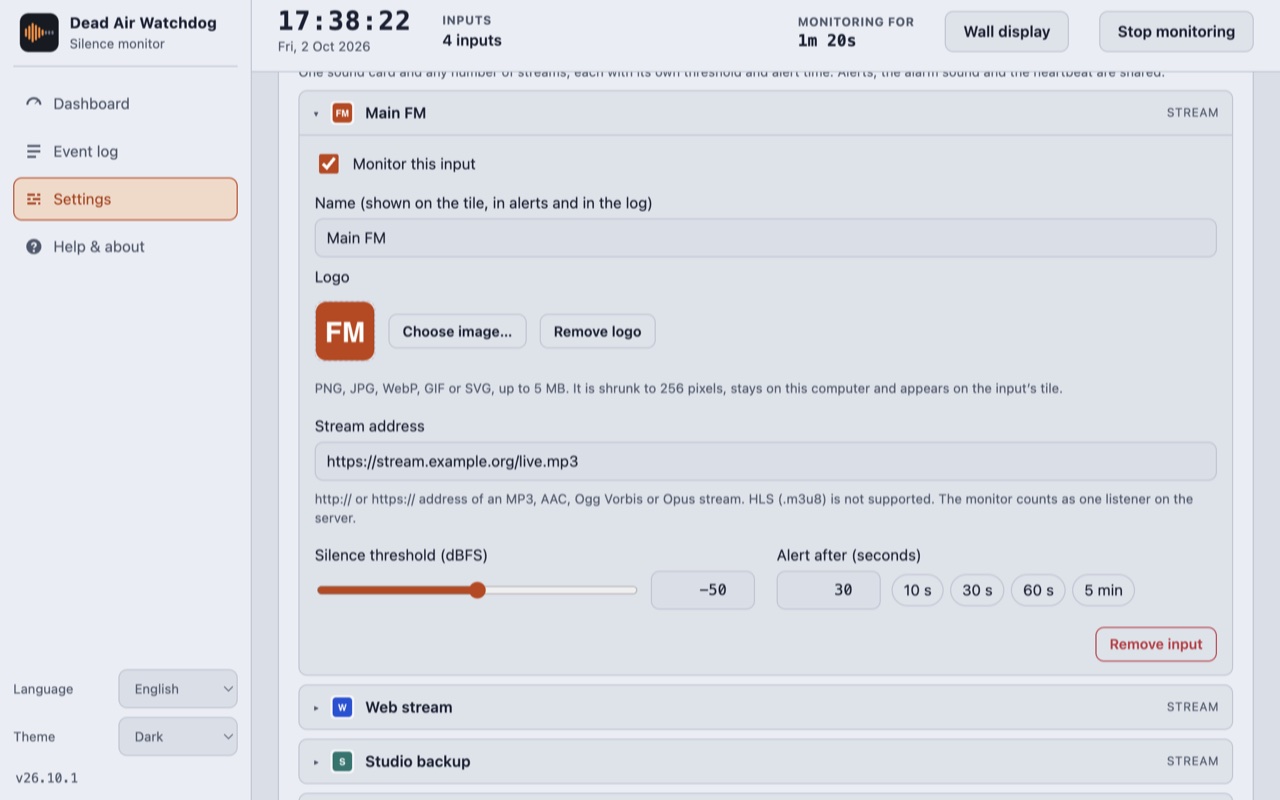
- Many inputs, one screen. One sound card (any pair of channels) and any number of streams, up to 32 inputs in all. Each input has its own name, logo, silence threshold and alert time, and can be added, changed or removed while monitoring runs.
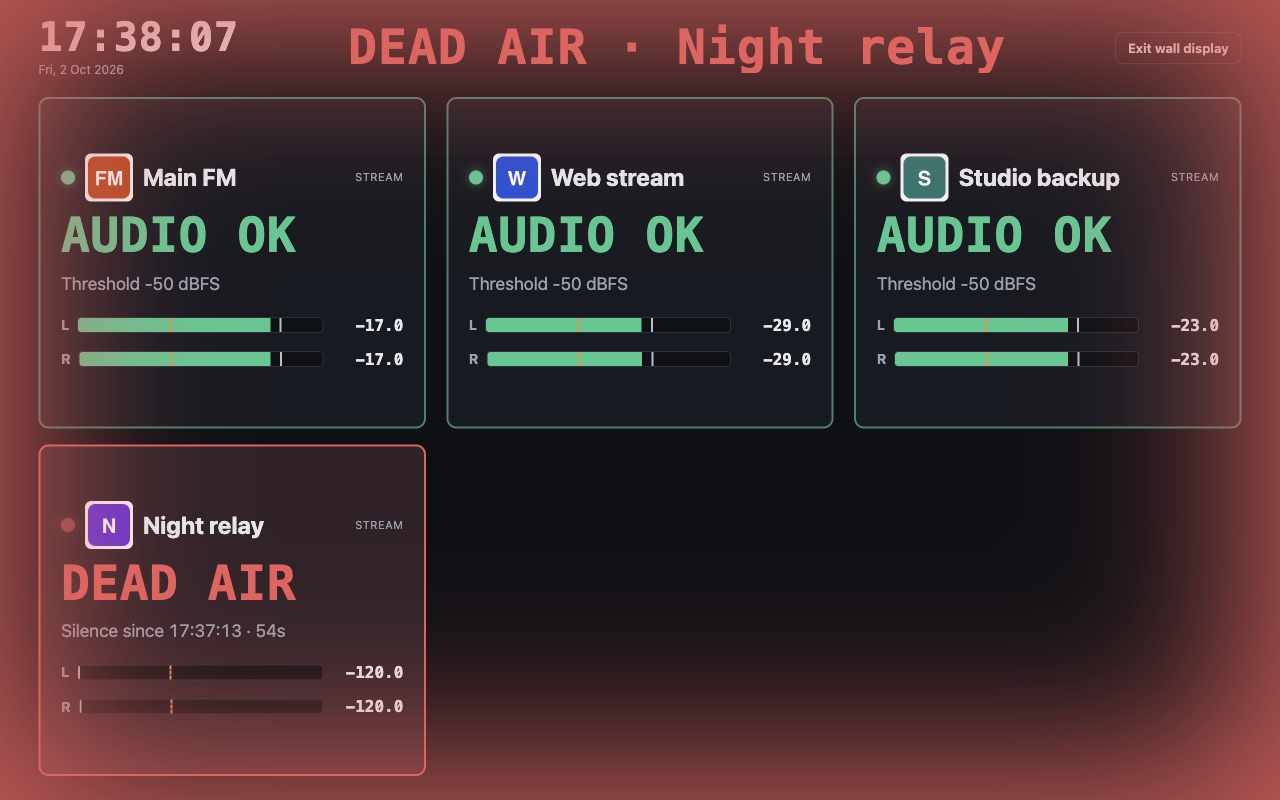
- Wall display. A full-screen view for a newsroom, a studio or the technical manager's office: a large tile for every input and a glow around the edge of the screen, green and slowly breathing while all is well, yellow during a countdown, flashing red during dead air. The screen is kept awake.
- Alerts that reach you. Email and Telegram (several recipients): one message when dead air starts and one when the audio is back, with the duration, always naming the input. Failed deliveries are retried for up to 30 minutes, because the network is often down during an outage too. A desktop notification and a single alarm sound are optional.
- Log and chart. Every event is kept in a local log with start, end, duration and cause (silence or input offline), together with the periods when nothing was monitored. Export it to CSV or JSON, and see the silences of the last 7, 14 or 30 days, for all inputs or one.
- Runs unattended. It lives in the tray, starts at login, keeps the computer awake, reconnects devices and streams by itself and restarts its audio engine if it stops responding. The level is measured, never recorded: no audio is saved or sent anywhere.
- Heartbeat. Optionally the app sends a plain request to an address you choose every few minutes. A service that alerts you when these requests stop tells you what the app cannot: computer off or asleep, app crashed, network down.
Where it helps
For anyone who must know within seconds that a station, a web stream or a backup mount has gone quiet, without sitting in front of a meter: unattended studios, night relays, a stream and its backup, an always-on screen in the newsroom. It measures what a listener would hear, so if your server plays a filler when the source drops, that is what it sees. The default threshold and time (−50 dBFS, 30 s) are recommended starting points, not values from a standard: tune them to your programme.
Screenshots
Quick start
- Open Settings, add a stream (paste its address) or the sound card, and give it a name.
- Check the threshold against the live meter, set the alert time, then enter your email or Telegram details and press Send test.
- Press Start monitoring, and open Wall display for the always-on screen.
First launch
The apps are free and not code-signed, so your system shows a warning the first time.
- Windows
- SmartScreen may say “Windows protected your PC”: click More info, then Run anyway.
- macOS
- Drag the app to Applications. If macOS blocks it, open System Settings → Privacy & Security and press Open Anyway.
- Linux
- Make the AppImage executable (chmod +x) and run it. Some distributions also need libfuse2.
- Check the file
- Compare the SHA-256 of what you downloaded with the one in the specs.
shasum -a 256 <file>·Get-FileHash <file> -Algorithm SHA256
Changelog
- 26.10.1 · 2026-10-02 · First public release.