
What it does
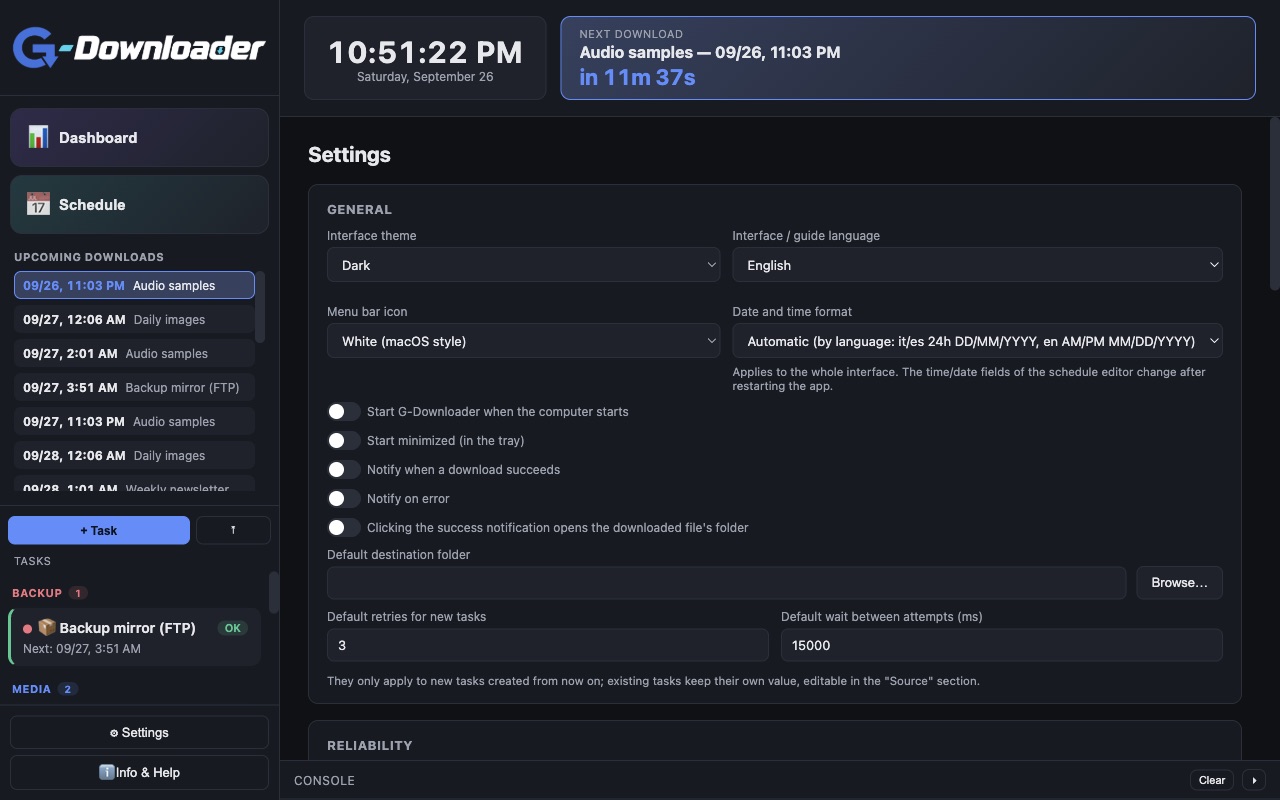
G-Downloader fetches files on a schedule and tells you what arrived and what failed. It runs in the system tray and keeps working when the window is closed.
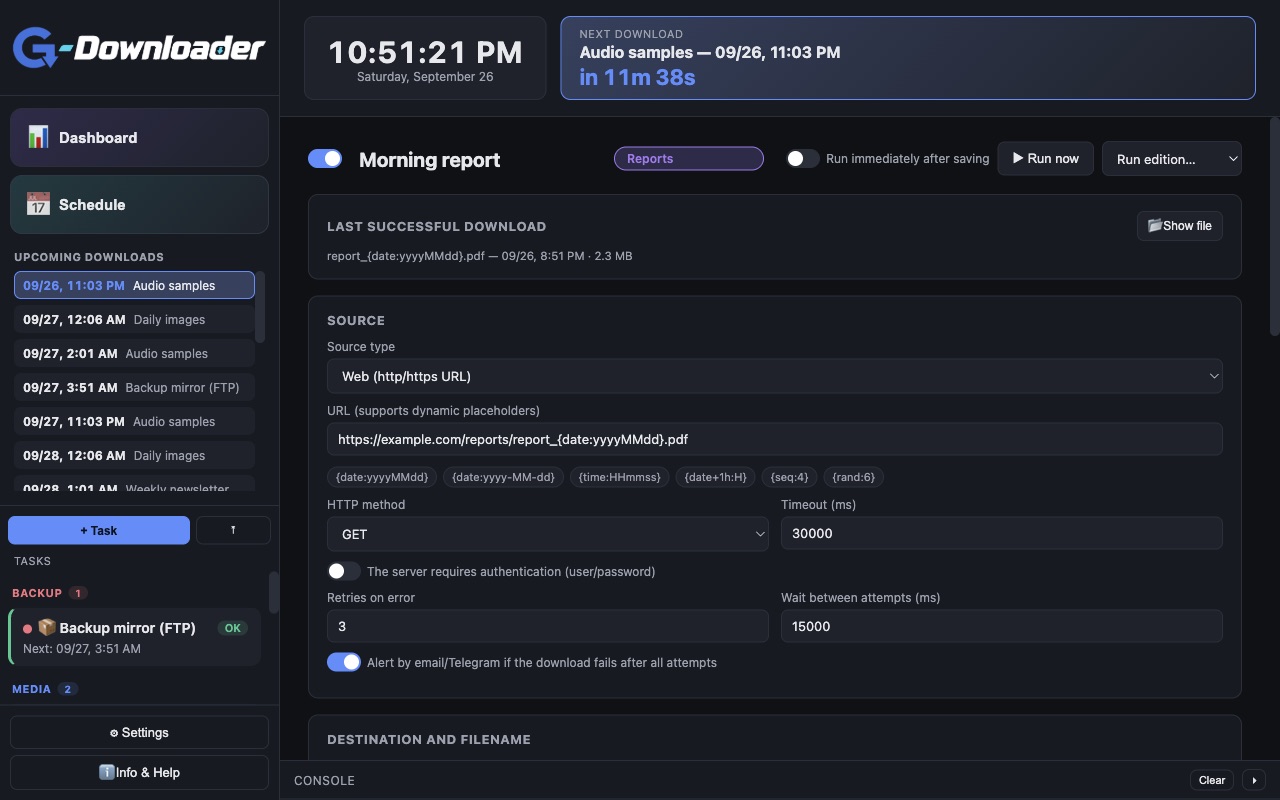
- Dynamic names and URLs. Date, time, counter, random string and environment variables in URLs and file names, with offsets such as “next hour” or “yesterday”.
- Any source. HTTP(S) with login or POST body, FTP and FTPS, local or network folders.
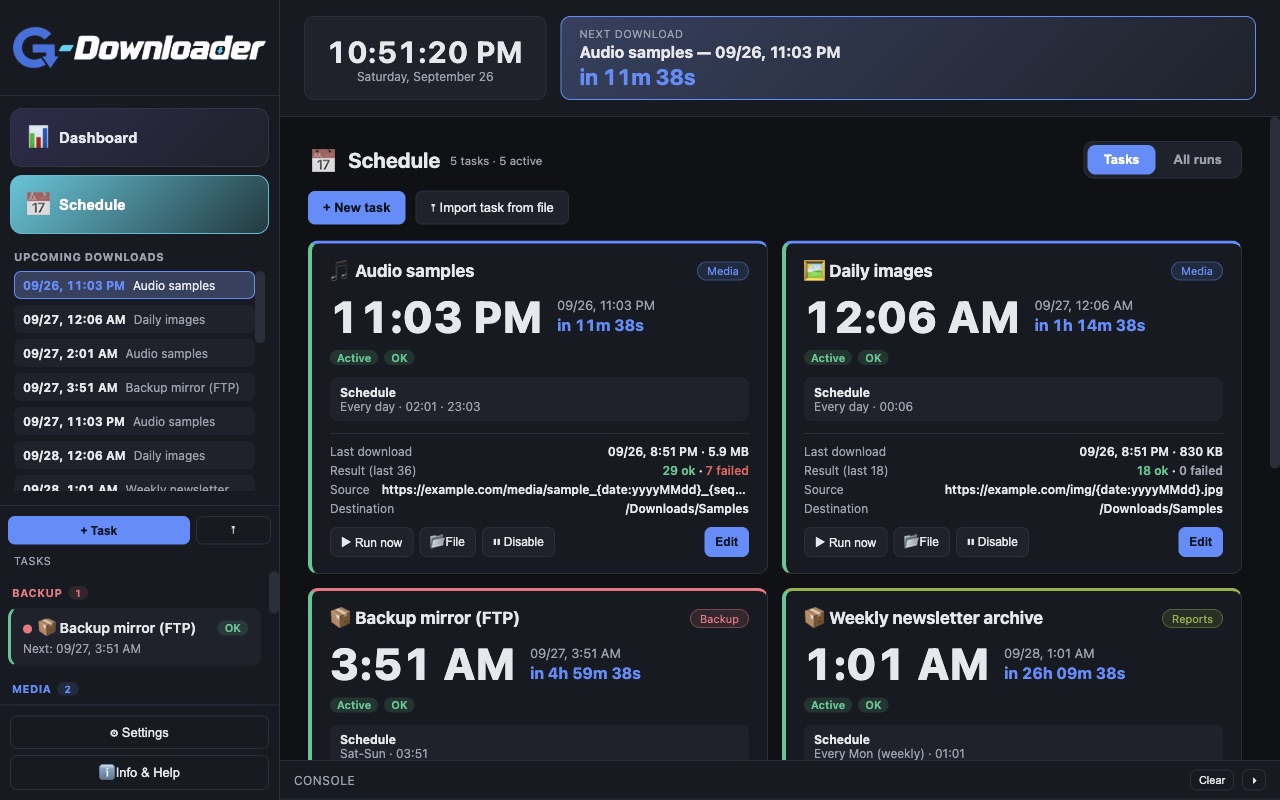
- Flexible schedules. Several per task: weekdays and times, one-off, every N minutes or hours, or a cron expression, with optional start and end.
- After the download. Run a program or script, move or open the file, show a notification. Existing files are renamed, never overwritten.
- Retries and alerts. Automatic retries, and email or Telegram alerts when a download fails.
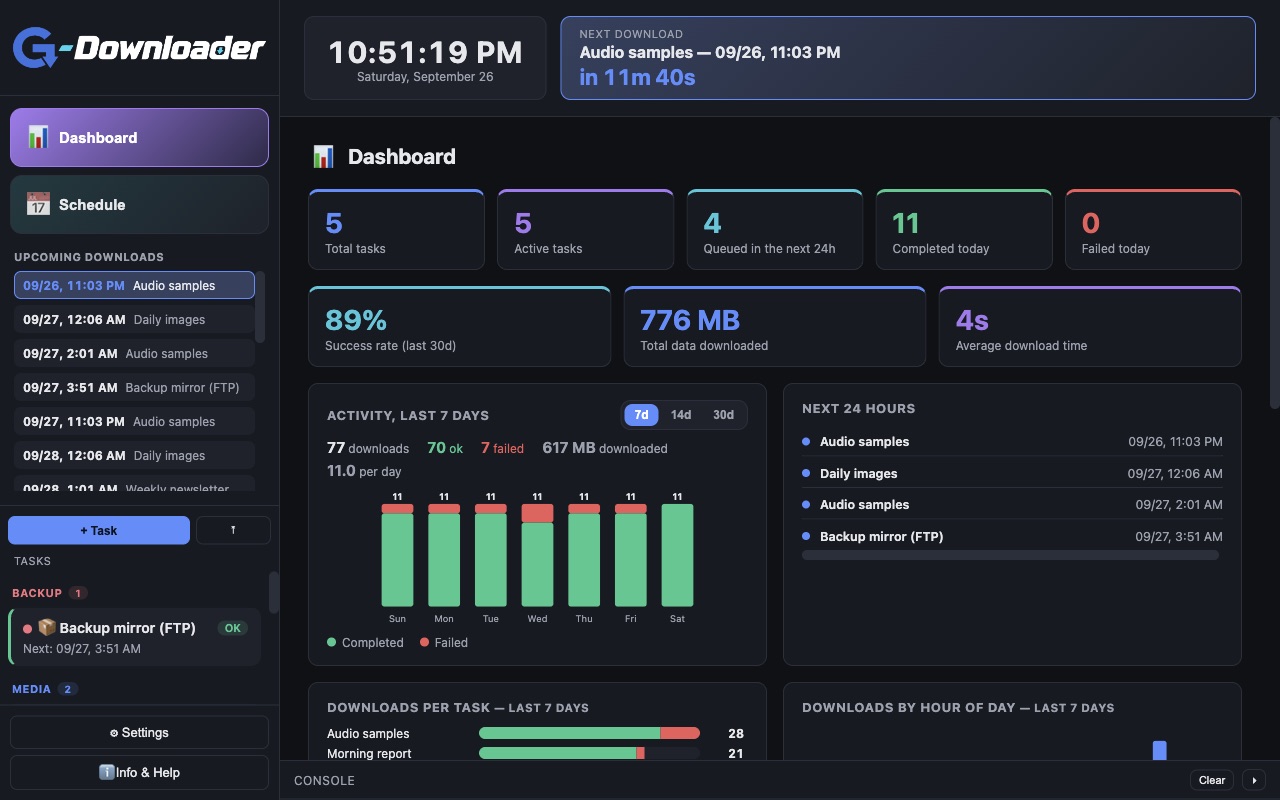
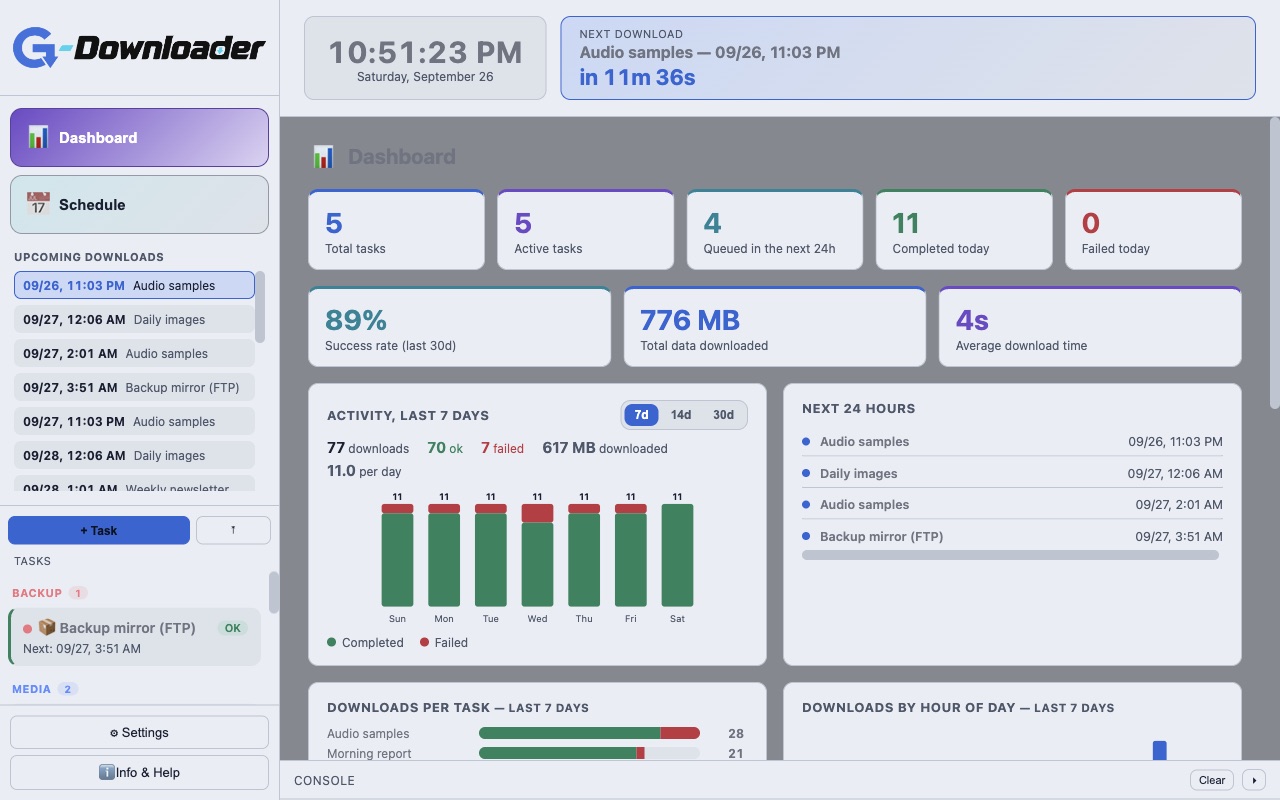
- Dashboard. What arrived, what failed, what's next; history, daily statistics, categories, light and dark theme.
Where it helps
Stations often receive newscasts and programs on an FTP server or a web link at fixed times. G-Downloader fetches each file on schedule, names it the way your playout expects and moves it where it belongs. The dashboard shows at a glance what arrived and what failed.
Screenshots
Quick start
- Install G-Downloader for your system.
- Create your first task with + Task: the source, the destination folder and how the file should be named.
- Set when it runs and check the upcoming downloads in the Schedule view.
First launch
The apps are free and not code-signed, so your system shows a warning the first time.
- Windows
- SmartScreen may say “Windows protected your PC”: click More info, then Run anyway.
- macOS
- Drag the app to Applications. If macOS blocks it, open System Settings → Privacy & Security and press Open Anyway.
- Linux
- Make the AppImage executable (chmod +x) and run it. Some distributions also need libfuse2.
- Check the file
- Compare the SHA-256 of what you downloaded with the one in the specs.
shasum -a 256 <file>·Get-FileHash <file> -Algorithm SHA256
Changelog
- 26.9.15 · 2026-09-27 · Green checkmark when the app is up to date; notice when it is minimized to the tray.
- 26.9.14 · 2026-09-27 · Guided update flow: download, verify the SHA-256 and install.
- 26.9.13 · 2026-09-26 · Resets an invalid or retired update repository saved in the settings.
- 26.9.12 · 2026-09-26 · First public release.